


DATA — MATERIALS — MODIFIERS — PARTICLES — ANIMATIONS
—
5 TRANSFER TYPES

Selected object(s) specific data can be transferred from the active variant to another.
This can be considered as a partial update of the target variant, only affecting active object(s) and only selected specific data. Independent object's data to be transferred and will affect nothing else than the selected DATA.
Transfers are only possible if there is more than 1 variant in the scene and if the selected object has relevant data to transfer (listed below).
DATA
TRANSFER
Selected object’s Data can be transferred to other variants. First, enable which data you want to transfer in the “TRANSFERS” tab, then hit the DATA transfer icon of the receiving variant’s header.

MATERIALS
TRANSFER
Selected object’s Material(s) can be transferred to other variants by clicking on the MATERIAL icon of the receiving variant’s header. Transferring materials will transfer both the material and the slot ID.

MODIFIERS
TRANSFER
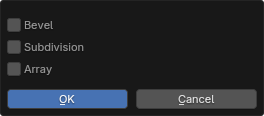
Select which object’s Modifier(s) you want to transfer from a pop-up that lists all its modifiers, respecting stack order and click on the MODIFIER icon of the receiving variant’s header.

PARTICLES
TRANSFER
Select which object’s Particle System(s) you want to transfer from a pop-up that lists all its P.S., respecting stack order. and click on the PARTICLE icon of the receiving variant’s header. The transfer of a Particle System will also transfer its associated modifier.

ANIMATION
TRANSFER
Selected object’s Animation(s) can be transferred to other variants by clicking on the SEQUENCE icon of the receiving variant’s header. Animations include both Object & Data.
—
2 TRANSFER SCOPES
1
—
SURGICAL
Per variant feature that allows you to transfer the selected object’s Data, Materials, Modifiers, Particle Systems or Animations to the variant(s) of your choice. Select any object and use the corresponding transfer buttons in the receiving variant’s header. Note that Data transfer requires enabling toggles prior to transfer.
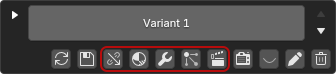

Notice that in the Active Variant, none of the transfers are available. Transfers are always made FROM the active variant to the other variants and cannot be performed on themselves.
2
—
GLOBAL
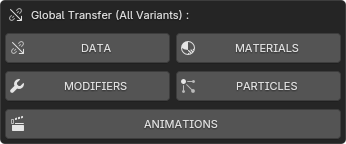
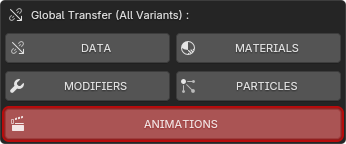
Effortlessly transfer the selected object’s Data, Materials, Modifiers, Particle Systems or Animations to all existing variants in one click by using the global transfer buttons. Select an object and use the global transfer buttons of the — TRANSFERS — tab to push your transfer to all existing variants.
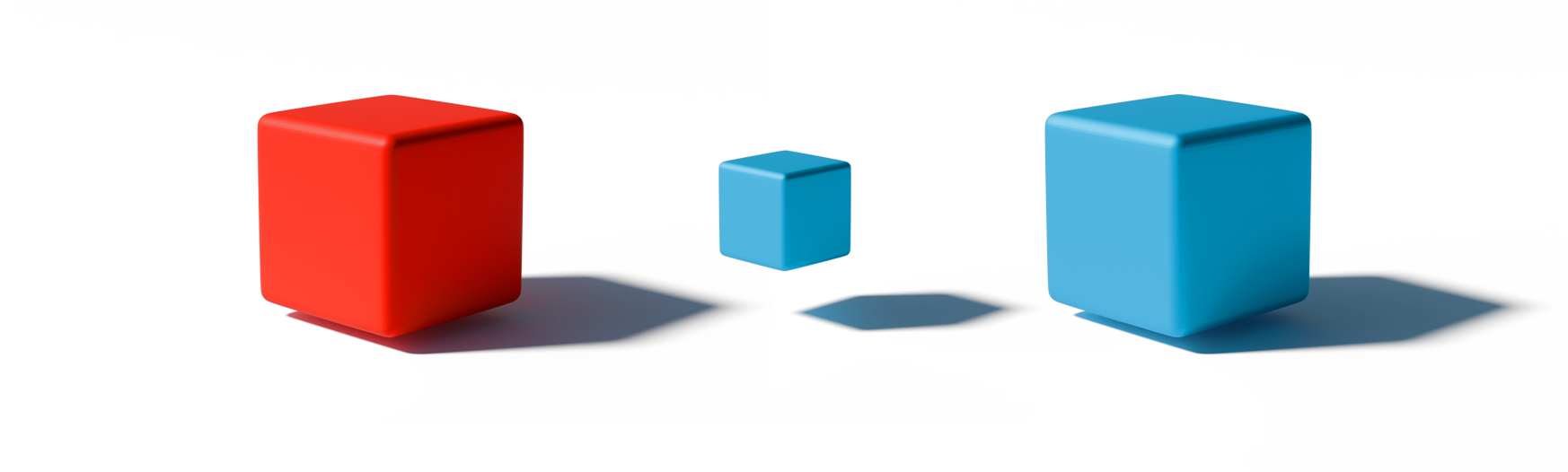
DATA Transfer (Scale) from Variant 1 to Variant 2
All other object properties are untouched.
—
DATA TRANSFER
To transfer the selected object’s data to other variants, first enable which data you want to transfer from the “TRANSFERS” tab, then hit the Data transfer icon of the receiving variant’s header.
Note that the light toggles will only be available if you have selected a light. Furthermore, some of them are light-type-specific.
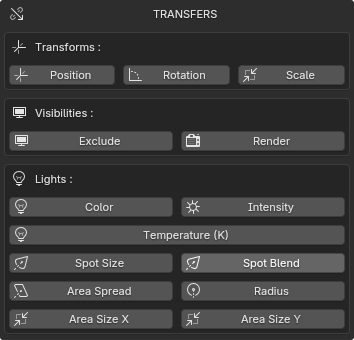
STEP 1 - TOGGLE DATA

TRANSFORMS
TOGGLES




Variant 1
—
Material = Red
Scale 1.0
Result
Variant 2
—
Material = Blue
Scale = 1.0
Variant 2
—
Material = Blue
Scale = 0.5
Position (X, Y, Z)
Rotation (X, Y, Z)
Scale (X, Y, Z)
VISIBILITIES
TOGGLES
Global Viewport visibility
Render Visibility

LIGHTS
TOGGLES
Color
Intensity / Power

Temperature (v4.5 + only)
Spot Size (Spot Lights)

Spot Blend (Spot Lights)
Area Spread (Area Lights)

Radius (Spot & Point Lights)

Area Size X (Area Lights)
Area Size Y (Area Lights)
STEP 2 - TRANSFER IT
1
—
SURGICAL
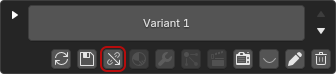
Once you enabled any Data toggle above, the Data transfer icon of all the non-active variants becomes available for transfer. Click on the Data icon to commit to the selected object’s Data transfer.
2
—
GLOBAL
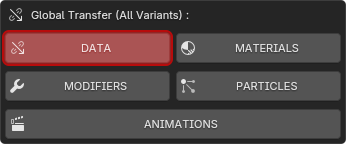
To transfer the selected object’s Data to all variants, use the global transfer button of the TRANSFERS tab to commit to a full-scale transfer across all existing variants you have created.
—
MATERIALS TRANSFER
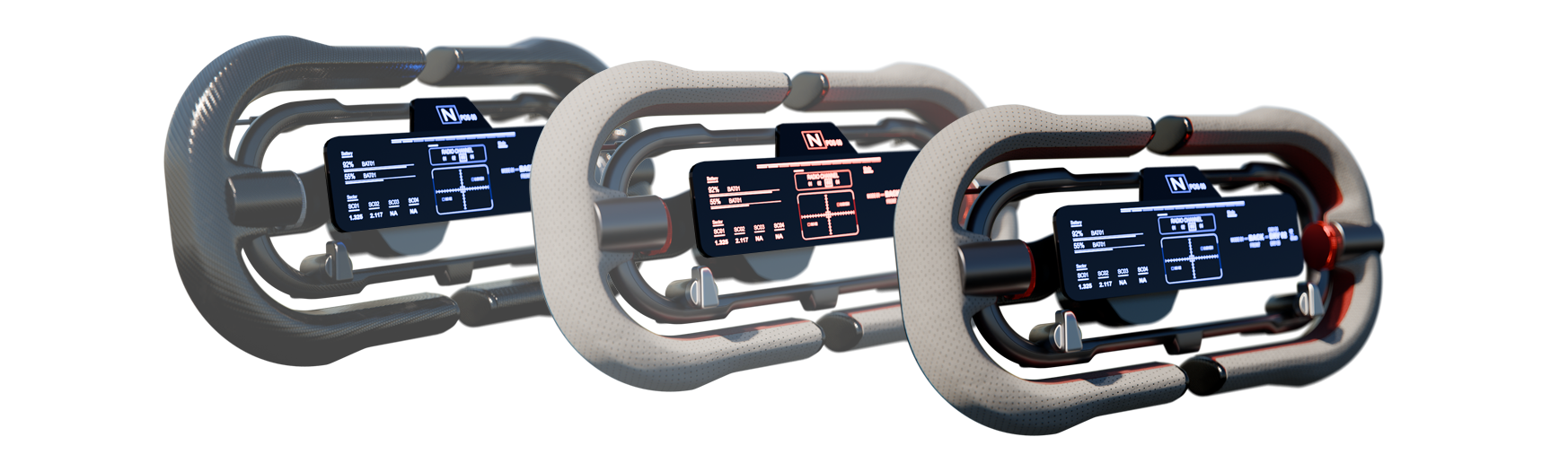
Transferring Materials is very easy and powerful.
When you transfer the selected object’s material(s), the Slots ID, slot ORDER and individual FACES assignment (for mesh objects) is transferred along.
1
—
SURGICAL
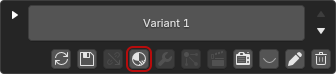
If the selected object has Material(s), the transfer icon then becomes available. Click on the Materials icon to commit the transfer of the selected object’s Material(s) from the active variant to this receiving variant.
2
—
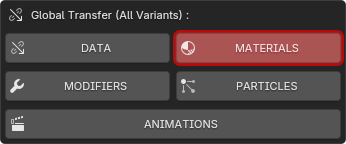
GLOBAL
To transfer the selected object’s Material(s) to all variants, use the global transfer button of the TRANSFERS tab to commit to a full-scale transfer across all existing variants you have created.
—
MODIFIERS TRANSFER
When an object is selected and has at least one Modifier in its stack, you can manually select which one(s) to transfer from it.
If the selected object doesn’t already have this/these modifier(s) in the receiving variant, they will be created with the same settings and data values.
If they already exist, they will be overwritten.
In the Modifiers picker pop-up, they are all listed in STACK ORDER before final transfer.
1
—
SURGICAL
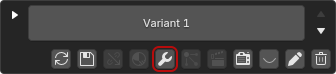
If the selected object has Modifier(s), the transfer icon then becomes available. Click on the Modifier icon to commit the transfer of the selected object’s Modifier(s) from the active variant to this receiving variant.
2
—
GLOBAL
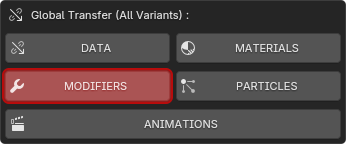
To transfer the selected object’s Modifiers to all variants, use the global transfer button of the TRANSFERS tab to commit to a full-scale transfer across all existing variants you have created.
—
PARTICLE SYSTEMS TRANSFER
When an object is selected and has at least one Particle System, you can manually select which Particle System(s) to transfer.
If the selected object doesn’t already have this/these Particle System(s) in the receiving variant, they are created with the same settings and data values.
If they already exist, they are overwritten.
In the Particle System picker pop-up, they are all listed in STACK ORDER before final transfer.
1
—
SURGICAL
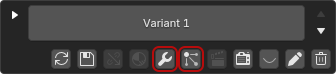
If the selected object has Particle System(s), the transfer icon then becomes available. Click on the Particle System icon to commit to the transfer from the active variant to this receiving variant.
NOTE: The transfer of a Particle System will automatically transfer its associated Modifier and vice-versa; Transferring a P.S. Modifier will also transfer its associated Particle System.
2
—
GLOBAL
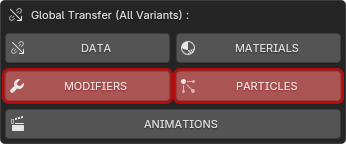
To transfer the selected object’s Particle System(s) to all variants, use the global transfer buttons of the TRANSFERS tab to commit to a full-scale transfer across all existing variants you have created.
NOTE: The transfer of a Particle System will automatically transfer its associated Modifier and vice-versa; Transferring a P.S. Modifier will also transfer its associated Particle System.
—
ANIMATION TRANSFER
Transferring Animations to other variants is just as easy as transferring any other type of information.
1
—
SURGICAL
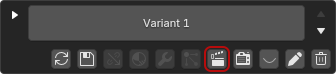
If the selected object has Animation(s), the transfer icon then becomes available. Click on the Animation icon to commit the transfer of the selected object’s Animation(s) from the active variant to this receiving variant.
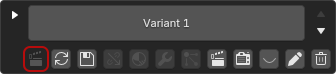
Once the Animation(s) transfer is complete, the receiving variant will display an “Animation” label in its header, indicating it now contains animation data.
2
—
GLOBAL
To transfer the selected object’s Animation(s) to all variants, use the global transfer button of the TRANSFERS tab to commit to a full-scale transfer across all existing variants you have created.

Back